
USB/Memory Card Data Recovery Frequently Asked Questions
Why is my USB not recognized? How do I fix USB Flash Drive not recognized?
No Data Recovered - No Charges Applied
Data Recovery for all devices, businesses & systems
Contact us
+974 40020565, 77280380








Why Windows Won't Recognize USB Device
There can be many reasons why Windows did not detect your flash drive. When users face problems with USB drive not showing up, most people believe that their drive is dead. However, this is only the worst-case scenario. There may be a problem with your computer hardware or with Windows itself which may cause a flash drive not detected an error. For instance, if your USB ports are dead, if there are partition issues on your external drive, if you have been using the wrong file system, or if there are driver issues in Windows, a USB drive won't show up.
- The unknown device, descriptor request failed, error code 43
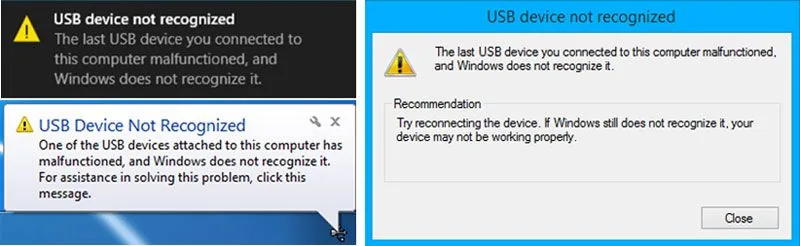
- One of the devices attached to this computer has malfunctioned, and Windows does not recognize it. For assistance in solving this problem, click this message
- Drive did not load successfully
- The device you connected to this computer malfunctioned, and Windows does not recognize it
- USB device did not recognize Windows 10/7
- Unknown drive, port reset failed
How to Fix USB Flash Drive Not Working in Windows
To computer not recognizing USB error in Windows, you must first determine the cause of the problem. Here are some solutions you can try out: The most first solution to fix the error, you can restart your PC and reconnect it to the PC. Second, you should plug the USB drive into another computer, if the error still happened again, the drive is broken and need to repair. Last, what if you connect many USB devices to the same computer, you should try to plug out other UBS devices and check, if the drive doesn’t work, you may follow the next solutions to fix windows not recognizing USB.
1. Check your USB Ports
If your USB ports are not functioning properly, Windows won’t detect your USB flash drive. To check your USB ports, If Windows still doesn’t recognize your device after these steps, your USB ports are faulty.
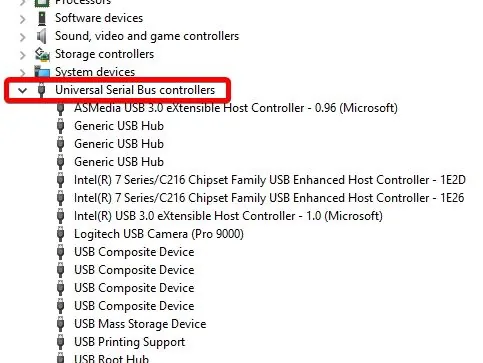
- Navigate to Start > Control Panel > Hardware and Sound > Device Manager > Universal Serial Bus
- Click on Uninstall
- Click on Scan for Hardware Changes
2. Update your Device Drivers
If your device drivers are outdated, Windows computers won't recognize USB. These steps will update your device drivers. If your error was caused due to outdated drivers, it would be fixed. To update the drivers manually as follow:
- Go to Settings, and click on Update & Security.
- By clicking on Windows Update and click the Check for updates button.
3. Change Power Management Settings
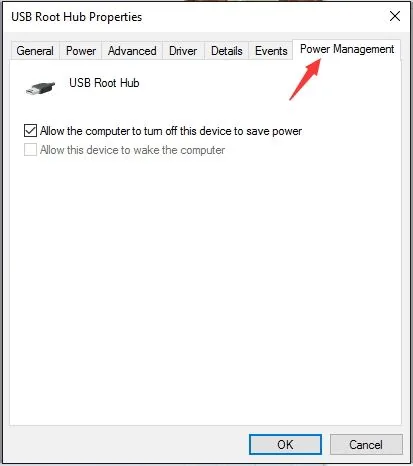
The power management settings in Windows 10 can also cause a flash drive not showing up the problem. To solve this issue, This will solve the power management issue that may cause Windows not to recognize a flash drive.
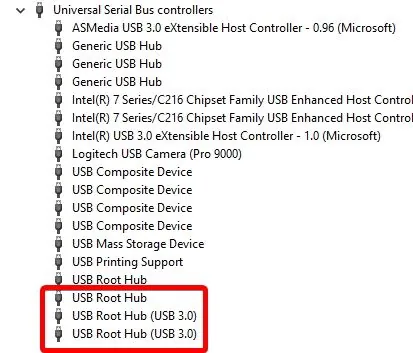
- Navigate to Start > Control Panel > Hardware and Sound > Device Manager > Universal Serial Bus
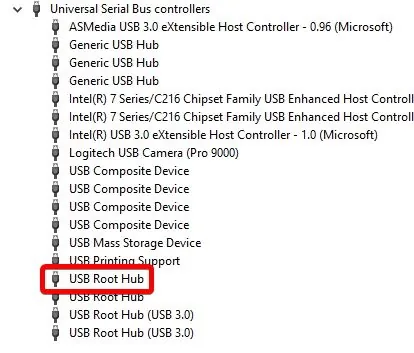
- Double click on the first 'USB Root Hub' that you see
- Navigate to the Power Management tab
- Uncheck the option "Allow this computer to turn off this device to save power." Click on OK.
- Please repeat these steps above mentioned for each USB Root Hub device in your list of Universal Serial Bus controllers
4. Updating Windows System
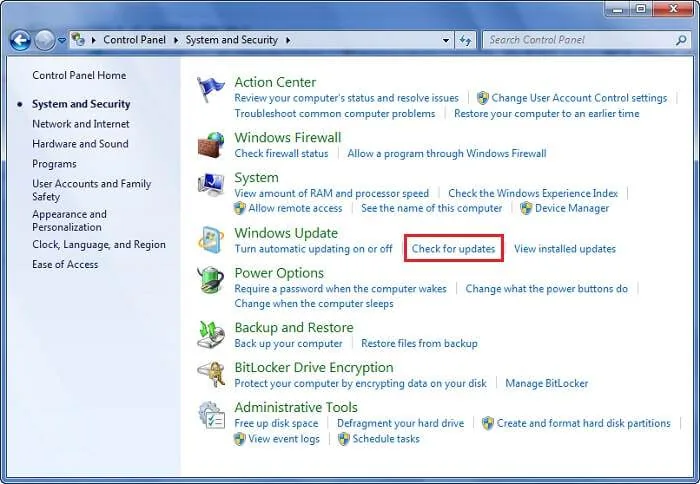
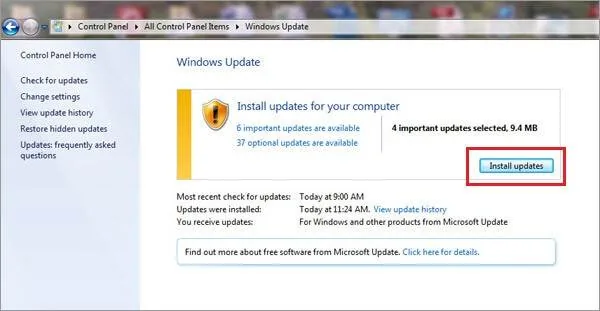
To update the Windows system on Windows 7 would help the computer to recognize a USB device, This will fix issues with your USB root hub, and hopefully, Windows will recognize your flash drive. follow these steps:
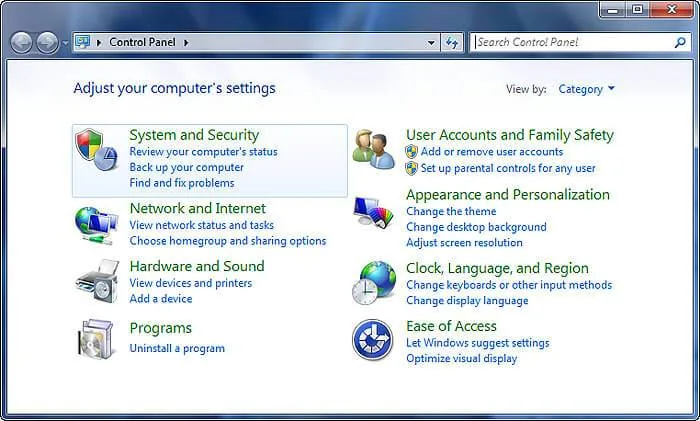
- Go to Control Panel > System and Security;
- Next, users need to make sure that the "Check for updates" option is selected;
- The Windows system will be updated.
5. Format your USB Drive
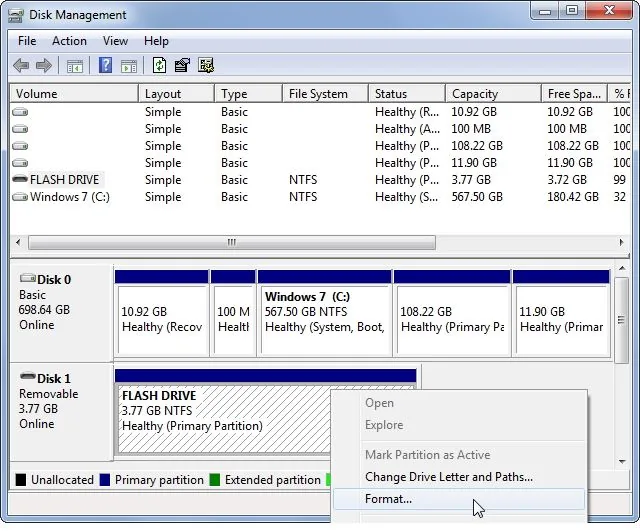
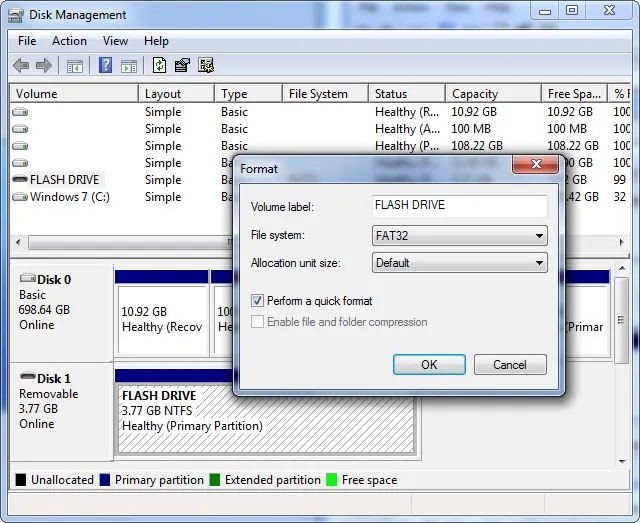
If you’ve tried all the above and nothing works, then your USB drive may be faulty. You’ll need to format the USB drive to get it to work again. Important: Formatting will erase all data from your USB drive. Make sure to restore and backup your data before you try formatting your USB device.To format USB drive,
- Navigate to the Windows Disk Management tool
- Right-click on your USB device on the list of all disks and click on the format
Recover Data after Fixing a USB Flash Drive Not Working Error
After fixing the USB device malfunctioned and not recognized the error in Windows, if the above-mentioned solution can help you and work, you can get a USB drive data recovery program to help you access the drive and get your data back.
There are many reasons why Windows may fail to recognize a USB device. It can be because of problems with computer hardware, with Windows, or with the flash drive itself. Make sure to determine the cause of the USB not recognized issue before you format your drive.